A TV remote from the command line
Pairing a Linux computer with a Google TV over the protocol phone remotes use, what the six-character code on the screen really checks, and why a remote that can’t change anything is worth having next to ADB.
Everything in decluttering our TCL Google TV went through ADB, Android’s debug bridge. ADB can do anything: run a shell, switch packages off, change settings, restart the TV. It also has to be switched on in Developer options, and at the end of the project it should be switched off again. Google TV has a second way in that’s always on, because the phone remote apps use it. It presses keys, opens apps and reports what the TV is doing, and it can’t do anything else. tv-remote.py is about 100 lines of Python that pair with it. This is how it works.
Two ways in
The TV announces both over mDNS, as _androidtvremote2._tcp and _googlecast._tcp, which is how this project found it in the first place. A port scan before anything was switched on showed 6466 and 6467 open for the remote, 8008, 8009 and 8443 for Cast, and 5555, ADB’s port, closed until USB debugging went on.
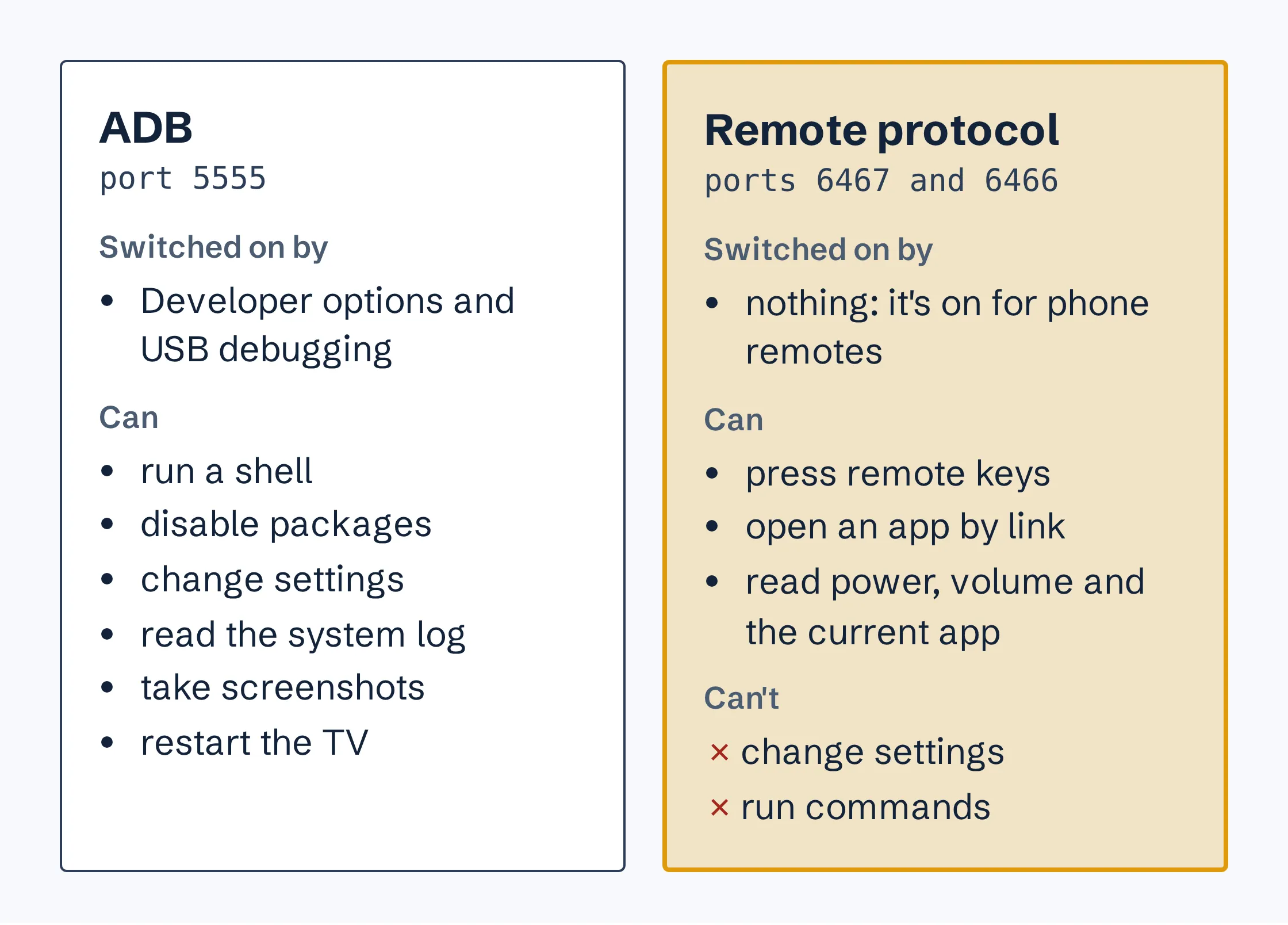
The difference matters for anything automated. While reading other people’s projects for this one, I found two servers that let an AI agent drive a TV. One works over the remote protocol and offers ten tools: keys, text, opening apps and status. The other works over ADB and offers a shell, a full uninstall and a restart. The first can annoy whoever is watching. The second can break the TV.
Pairing
The remote protocol is two services over TLS. Port 6467 pairs, and port 6466 takes commands once paired. Both use protocol buffers. The Python library androidtvremote2, which Home Assistant also uses, implements the client, so the script only has to manage a certificate and pass the code along:
r = AndroidTVRemote("tcl_tv PC", str(CERT), str(KEY), TV, enable_ime=False)
await r.async_generate_cert_if_missing()
await r.async_start_pairing()
code = input("Code: ").strip()
await r.async_finish_pairing(code)
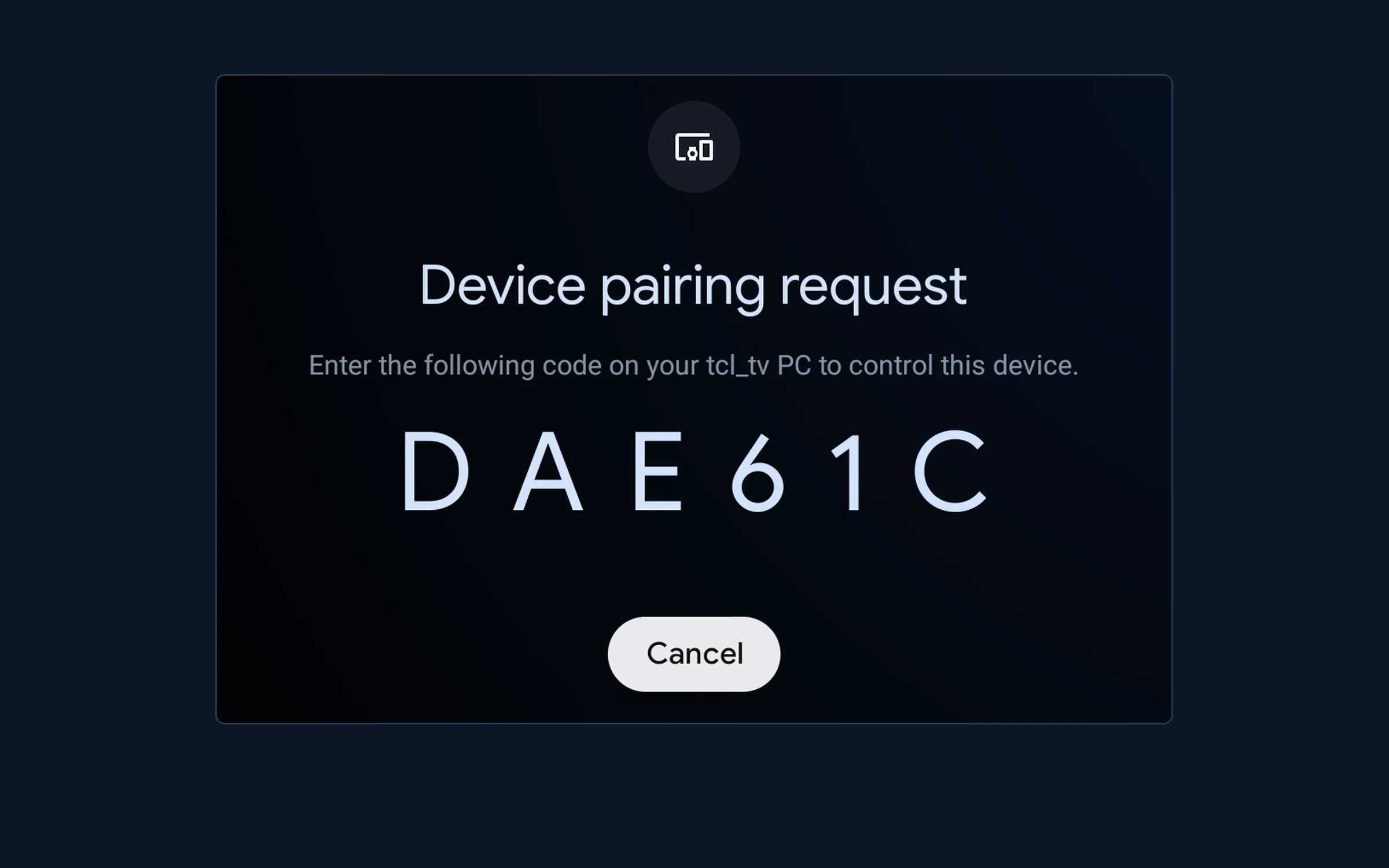
The client makes itself a self-signed certificate and asks to pair, and the TV shows a six-character code. The code looks like a PIN, but only four of its characters are random. The first two are a check. The client hashes both certificates’ public keys, the laptop’s and the TV’s, together with the last four characters, and the first byte of that SHA-256 hash has to equal the first two:
h = hashlib.sha256()
h.update(bytes.fromhex(f"{client_modulus:X}"))
h.update(bytes.fromhex(f"0{client_exponent:X}"))
h.update(bytes.fromhex(f"{server_modulus:X}"))
h.update(bytes.fromhex(f"0{server_exponent:X}"))
h.update(bytes.fromhex(pairing_code[2:]))
if h.digest()[0] != int(pairing_code[0:2], 16): ...
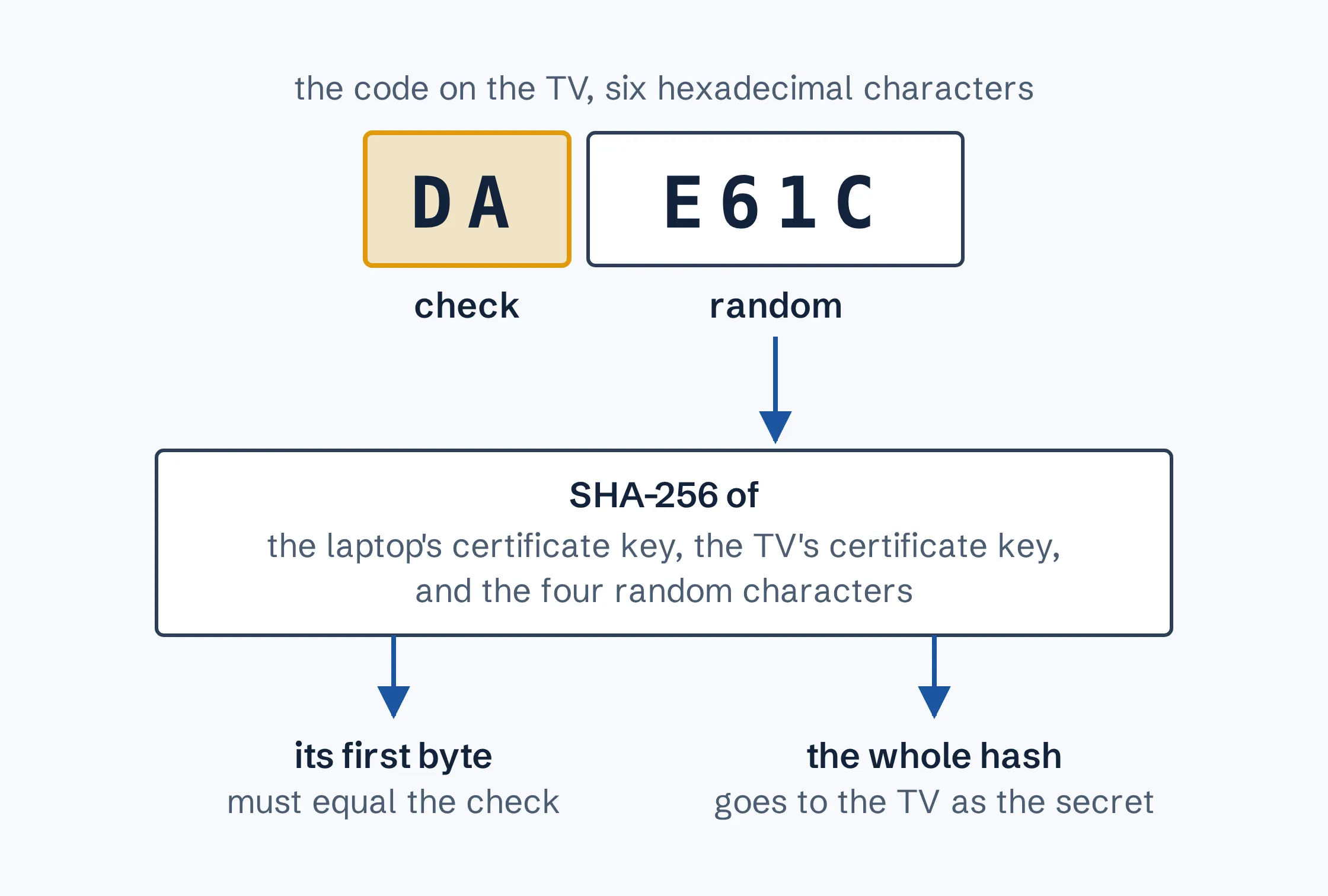
A mistyped code fails that check before anything is sent, and so does a connection where something in the middle has swapped in its own certificate, because the TV worked out the check from the certificate it actually presented. The whole hash then goes to the TV as the secret, and the TV does the same sum. After that, the certificate is the credential. Whoever holds the key file can drive the TV, so the script keeps it in a folder only its owner can read.
Reading the code without being there
Someone normally reads the code off the TV and types it in. With ADB still on, nobody had to. The pairing ran in the background, waiting up to three minutes for the code to appear in a file, and a screenshot over ADB supplied it:
python3 scripts/tv-remote.py pair --code-file code.txt &
adb exec-out screencap -p > screen.png
echo DAE61C > code.txt
Screenshots in this project are deleted once they’ve been read. The pairing screen at the top of this post is kept because it belonged to a throwaway pairing with its own certificate, cancelled before it finished.
Keys, apps and the TV’s state
Once paired, status reads what the TV tells a remote when it connects:
$ python3 scripts/tv-remote.py status
on=True app= volume={'level': 86, 'max': 100, 'muted': False} device={'manufacturer': 'TCL', 'model': 'Smart TV Pro', 'sw_version': '7.00.956317615'}
The current app came back empty while Projectivy’s home screen was showing, so it isn’t a reliable way to tell what’s on.
key sends key names from the protocol, one after another. DPAD_DOWN moved the focus from the Fire Stick tile into the row of apps, twelve presses of DPAD_LEFT scrolled the row back to its start, and HOME brought Projectivy back from another app. The script also takes Android key codes as numbers, such as 243 for HDMI 1, but I haven’t tried one.
app hands the TV a link, and whichever app claims it opens. A Play Store link for Projectivy opened the Play Store on Projectivy’s page, and HOME closed it again.
What it misses
It can’t change a setting, read the screen or install anything, which is the point, and also why it can’t replace ADB for the work in the decluttering post. It only works while the TV is on the network. On the night the TV lost power, the remote port went silent along with ADB and everything else.
The first two presses I sent went to a TV that had been left alone, with Projectivy’s home screen faded down to its wallpaper, and they didn’t bring it back. The same two presses over ADB did, and once the home screen was showing, every press over the remote protocol worked. I don’t know why. Whether the remote protocol can wake the TV from standby, I haven’t tried.
Using it
The script needs androidtvremote2, in requirements.txt, and the TV’s address:
pip install -r requirements.txt
export TV_HOST=192.168.1.50
python3 scripts/tv-remote.py pair      # type the code shown on the TV
python3 scripts/tv-remote.py status
python3 scripts/tv-remote.py key HOME
The pairing key is saved in ~/.config/tcl_tv/remote/. Keep it private. The script is in the TCL Google TV Tools repository.