A fourth screen on the living-room TV
Giving a Linux laptop an extra 4K screen that only exists while the TV is watching, with Sunshine and Moonlight to stream it, a virtual display driver instead of a dummy plug, and the black screens and lost layouts on the way.
Casting a browser tab to the TV is fine for a video. It isn’t a second screen: the sound of a meeting cast from a tab stays split from the laptop, and nothing outside the browser comes along. I wanted the TV I decluttered over ADB to be a fourth screen for my laptop: drag a window onto it and it plays on the TV, with the TV’s sound, while the other three screens stay mine. The laptop runs Ubuntu 22.04 and GNOME on X11, with an RTX 4080, its own panel and two portrait 4K monitors behind a DisplayPort hub. The streaming is done by tools built for games. The screen itself doesn’t exist, and that turned out to be the interesting bit. This is how.
Streaming a screen
Sunshine runs on the PC and encodes a screen on the GPU, and Moonlight on the TV plays it back. Sunshine’s Ubuntu package installs a systemd user service, and the firewall lets only the TV in:
sudo apt install ./sunshine_2026.914.233613-1+ubuntu22.04_amd64.deb
systemctl --user enable --now app-dev.lizardbyte.app.Sunshine
sudo ufw allow from 192.168.1.x to any port 47984,47989,48010 proto tcp
sudo ufw allow from 192.168.1.x to any port 47998:48010 proto udp
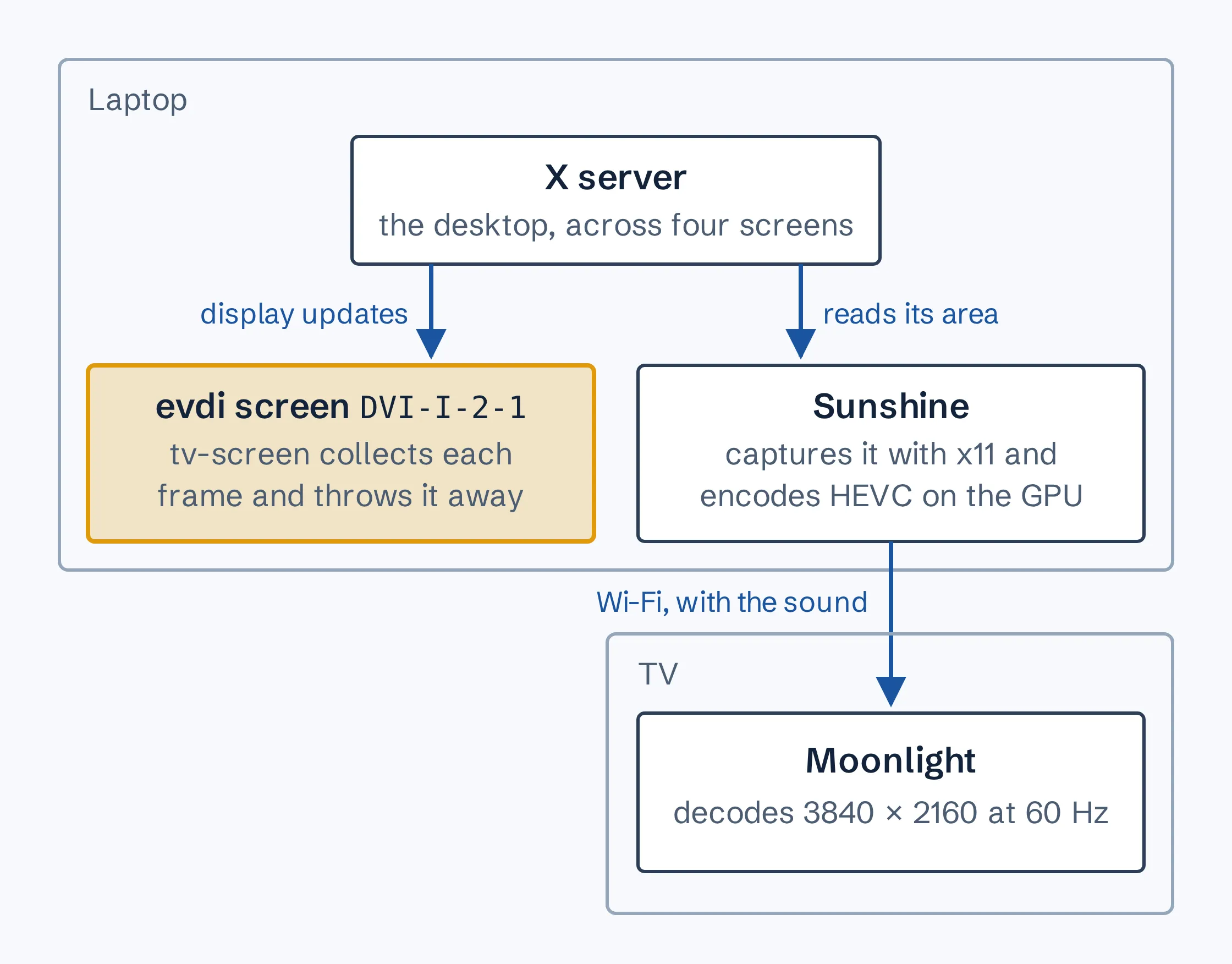
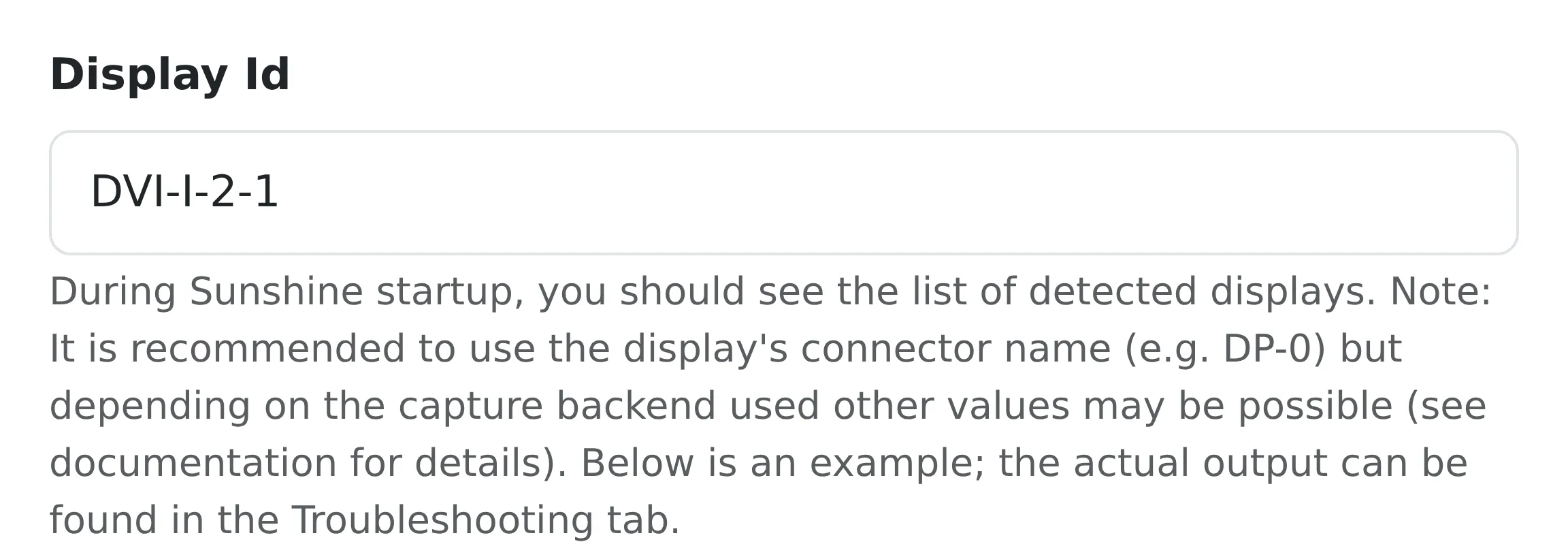
Two settings in ~/.config/sunshine/sunshine.conf made it work. capture = x11 stops a hang at start-up, where Sunshine tries NVIDIA’s fast capture, which needs a patched driver on consumer cards, and never moves on. output_name has to be a name such as eDP-1-1, not a number, because the capture code counts every output the X server lists, connected or not, while the session code matches names.
That streams one of the laptop’s existing screens. A fourth screen needs a monitor the desktop can lay windows on and nobody is looking at.
A monitor that isn’t there
The usual answer is a dummy HDMI plug, a few pounds’ worth of chip that tells the laptop a monitor is connected. NVIDIA’s driver can fake one too, with its ConnectedMonitor option, but that replaces the driver’s own detection of every display, and the two 4K monitors come and go with the hub.
The third option is evdi, the virtual display driver behind DisplayLink docks. Ubuntu packages it for 22.04, with patches for the 6.8 kernel and for running without a DisplayLink device, and Secure Boot was off, so DKMS could build it without signing:
sudo apt install evdi-dkms libevdi0 libevdi0-dev
echo 'options evdi initial_device_count=1' | sudo tee /etc/modprobe.d/evdi.conf
echo evdi | sudo tee /etc/modules-load.d/evdi.conf
One more file, /etc/X11/xorg.conf.d/20-evdi.conf, tells X11 to drive it with the modesetting driver and AccelMethod none, which is DisplayLink’s advice for NVIDIA machines. After a restart, xrandr listed a third display provider and a new output, DVI-I-2-1, disconnected: a port with nothing in it.
Plugging it in
Something has to plug a monitor into that port. A monitor describes itself with an EDID, a 128-byte block listing its name and modes, so make-edid.py writes one by hand: 3840 by 2160 at 60 Hz with the standard 594 MHz timing, 1920 by 1080 as a second mode, and the name “TV screen”. edid-decode --check passes it. A C program of about 140 lines hands it to evdi:
evdi_connect(handle, edid, edid_len, 3840 * 2160, 3840 * 2160 * 60);
GNOME saw a new monitor appear, and turned both portrait monitors landscape.
Black screens
The first version of the program connected the monitor and then just waited. Within a minute every screen was black, and the kernel log said why, every 10 seconds:
evdi evdi.0: [drm] *ERROR* flip_done timed out
evdi evdi.0: [drm] *ERROR* [CRTC:35:crtc-0] commit wait timed out
evdi doesn’t finish a display update until its client has collected the frame. A DisplayLink dock collects them to send down the cable. My program didn’t, so the X server waited on each update, and everything else waited on the X server. The fix is to behave like a dock and throw the frames away:
static void request_frames(void)
{
	while (pixels && evdi_request_update(handle, BUFFER_ID))
		grab();
}
grab() copies the changed areas into a buffer registered when the mode is set, and an update_ready event calls it again for the next frame. Sunshine doesn’t need those pixels, because it reads the screen from the X server like any other. Since then there hasn’t been a single timeout. While a session runs, it costs about 8% of one CPU core at 1080p and about 23% at 4K.
Where GNOME puts it
The landscape problem was GNOME doing its job. It remembers a layout for each set of monitors, and “panel, two 4K monitors and a TV screen” was a set it had never seen, so it laid them out from scratch. It also only saves a layout once someone clicks Keep Changes, and while the X server was stalling it lost track of which layout went with which set, so the normal three-screen one came back landscape too.
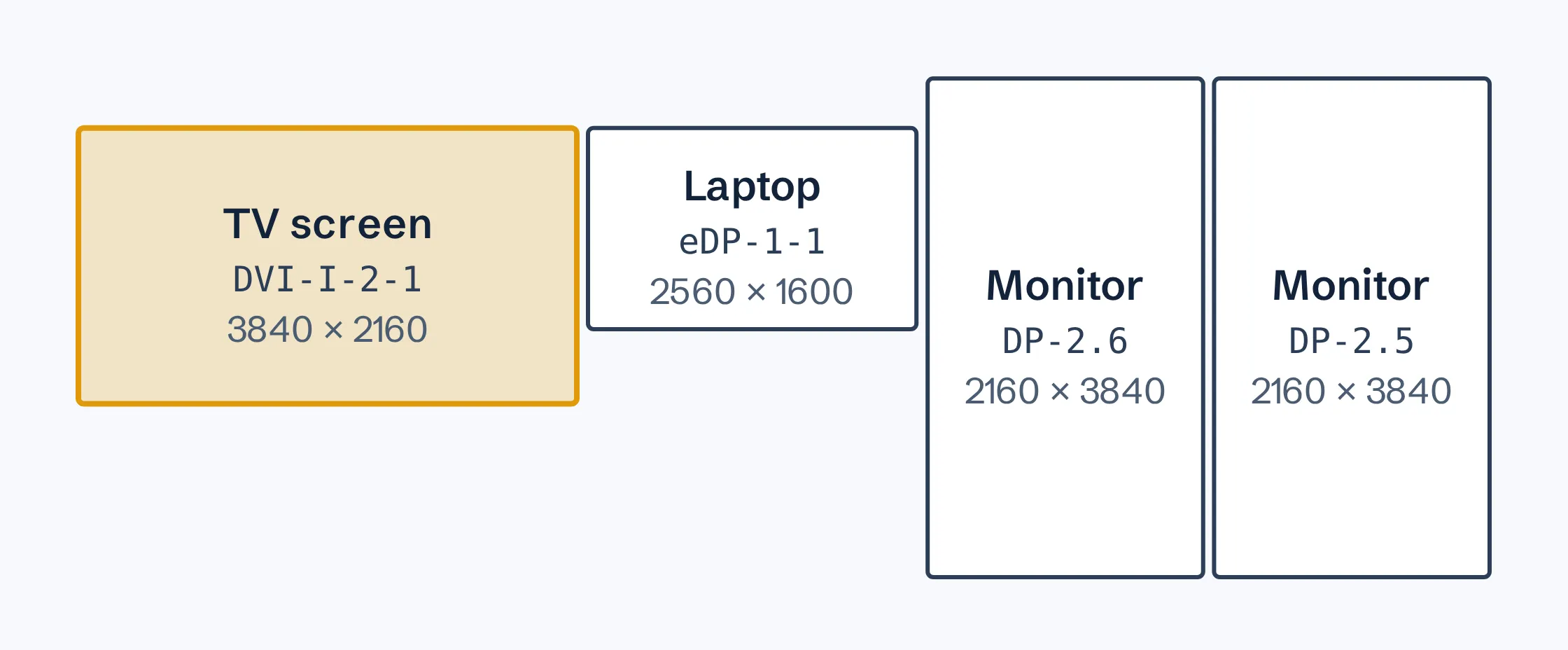
tv-screen-layout.py takes the current layout, adds the TV screen to the left of the laptop panel, and applies it over D-Bus with Mutter’s ApplyMonitorsConfig method. First it applies it temporarily, then persistently, so if nobody clicks, GNOME falls back to the right layout rather than its defaults. One click later, I plugged the screen in and took it out three times in a row, and both layouts came back correctly each time.
Only while the TV is watching
Sunshine runs a prep command before a session and an undo command after it. tv-screen-prep.sh do starts the program and waits until the desktop has switched the screen on, and undo stops it:
output_name = DVI-I-2-1
global_prep_cmd = [{"do":".../tv-screen-prep.sh do","undo":".../tv-screen-prep.sh undo","elevated":false}]
The first session logged a warning, “Couldn’t get info for requested display [DVI-I-2-1], defaulting to recording entire virtual desktop”, which looked bad and wasn’t. Sunshine tests its encoders before running the prep command. The stream itself started 0.65 seconds later, after it:
Info: Streaming display: DVI-I-2-1 with res 3840x2160 offset by 0x373
When a session ended, though, the screen stayed plugged in. Sunshine keeps the Desktop app running after a disconnect so the client can resume, and only runs the undo when the app is closed. tv-screen-follow.sh follows Sunshine’s log and, on “CLIENT DISCONNECTED”, closes the app through Sunshine’s own API, POST /api/apps/close. Closing the app runs the undo.
The last surprise was on the TV. Moonlight’s resolution setting was 720p, so every frame had been scaled down to 1280 by 720 before it left the laptop. At 4K the TV now gets the screen pixel for pixel.
What it misses
Text on a 4K screen at normal scaling is drawn at the same size in pixels as on a 4K monitor, so from the sofa it’s small. That’s fine for a meeting or a video and less so for reading. GNOME on X11 can’t scale one screen on its own, so the choice is between 4K and setting the TV screen to 1080p in Settings.
I haven’t measured the delay, or tried a whole meeting on it. Moonlight crashed once, seven minutes into a 720p session, with a decoder error on the TV, and I don’t know why. The 4K session since has run for more than a quarter of an hour without one. What the TV remote’s arrows do during a session hasn’t been tested either.
It’s X11 only. GNOME on Wayland has virtual monitors of its own for remote desktops, which might make most of this unnecessary, but I haven’t tried it.
And a screenshot of the TV is now a screenshot of the laptop. While a session runs, anything that captures the TV’s screen captures whatever is on the TV screen, messages and all.
Using it
With the driver installed and the laptop restarted:
gcc -O2 -Wall -o laptop/tv-screen laptop/tv-screen.c -levdi
python3 -I laptop/make-edid.py laptop/tv-screen-4k.edid
systemctl --user link "$PWD/laptop/tv-screen.service"
systemctl --user enable --now "$PWD/laptop/tv-screen-follow.service"
python3 -I laptop/tv-screen-layout.py
Then set output_name and global_prep_cmd in Sunshine, and the resolution in Moonlight. On the TV, Moonlight, the laptop, then Desktop, and the laptop gains a screen to the left of its own. The code and the full setup are on GitHub, and the product page lists the rest of the scripts.